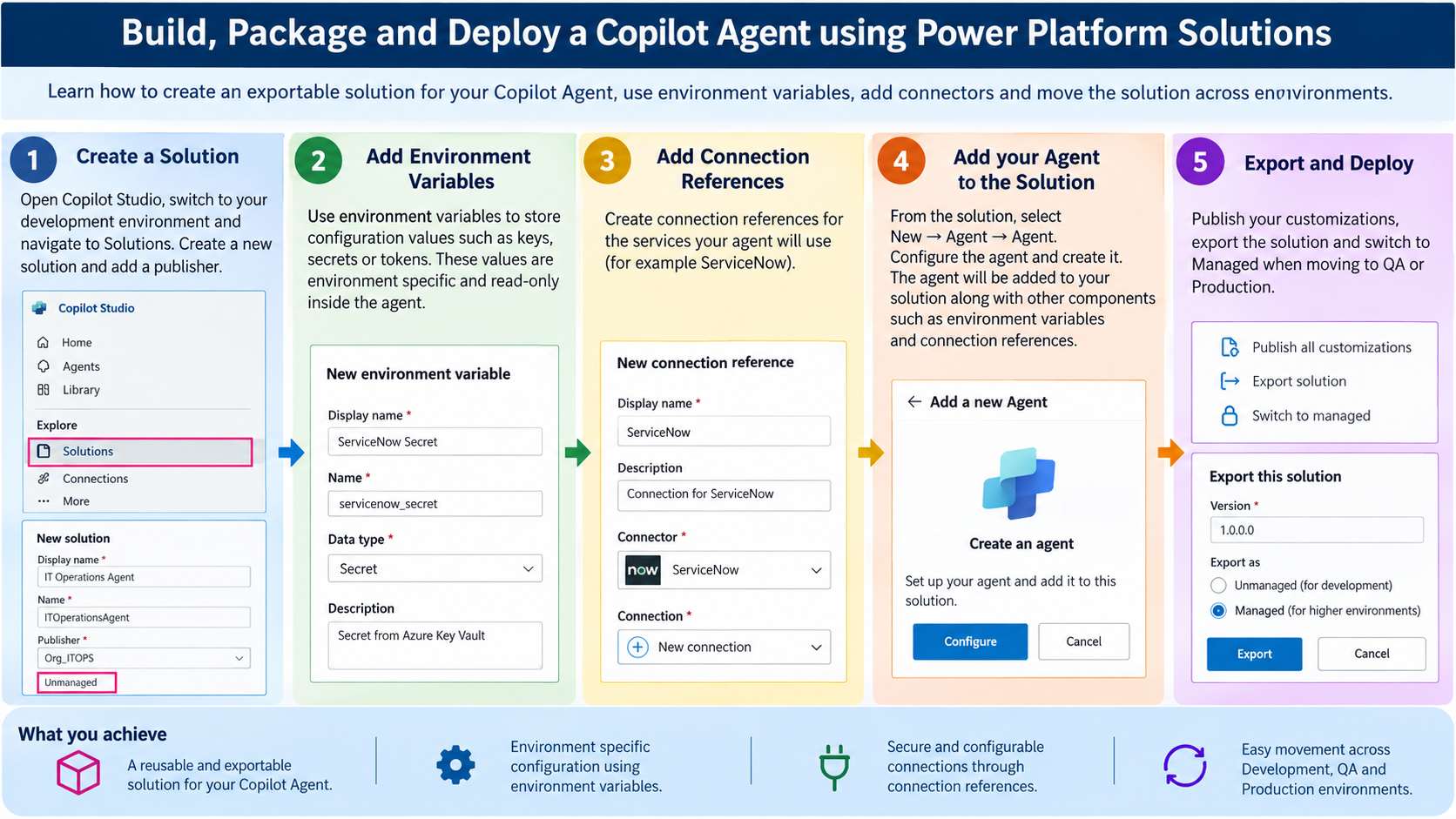
Before we continue with our series on Create a Self-Serve SharePoint Operations Agent, let’s first understand how to build a Copilot Agent in a proper way so it can be version controlled, tested, maintained and moved safely across environments.
In real-world projects, a Copilot Agent is not just an agent. Behind the scenes, it is packaged inside a Dataverse Solution, so the solution should follow a proper Application Lifecycle Management (ALM) process when moving from Development to QA and then Production.
In this post, we will cover:
✔️ How to create a Solution for a Copilot Agent
✔️ How to use Environment Variables for environment-specific settings
✔️ How to add Connection References for connectors used by the Agent
✔️ How to add the Agent and other components into the Solution
✔️ How to export and move the Solution to higher environments
Before we start, it is useful to understand a few basic Solution and Copilot Agent terms.
Create a Solution for your Copilot Agent
First, open Copilot Studio and switch to your development environment. You can check the selected environment from the top-right corner.

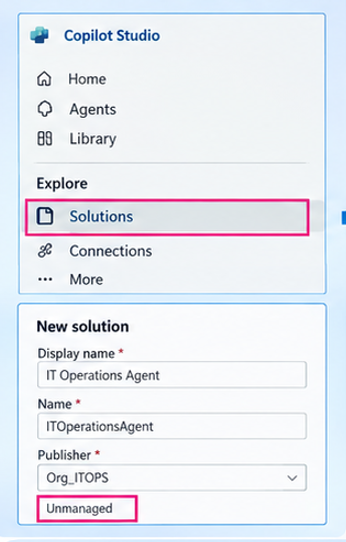
Go to Solutions from the Explore section and create a new Solution.
When creating the Solution, also create or select a Publisher. In my example, I used Org_ITOPS because the plan is to build multiple IT Operations Agents under the same publisher.
Make sure the Solution is created as Unmanaged in the development environment.
Add Environment Variables
Before adding the Agent, it is a good idea to configure the environment-specific values that your Agent may need.
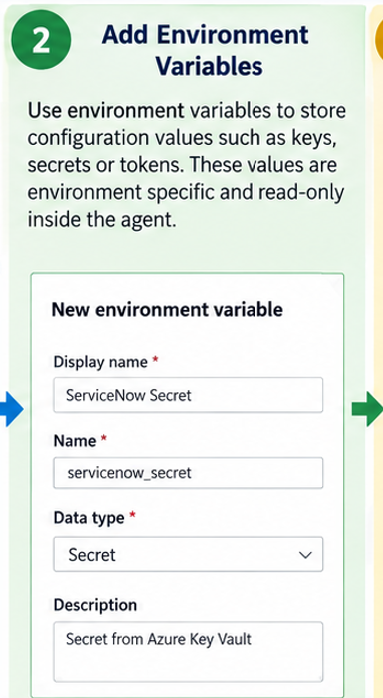
Environment Variables are useful for storing configuration values that can change between environments. For example, you may have different URLs, IDs, keys or other configuration values for Development, QA and Production.
Inside your Solution, go to:
New → More → Environment Variable
Create the required variables and define their data type and value.
For example, you may have a variable related to a secret or configuration value used by your Agent.
The main benefit is that you do not need to hard-code environment-specific values inside the Agent.
Add Connection References
The next step is to add the connections used by your Agent.
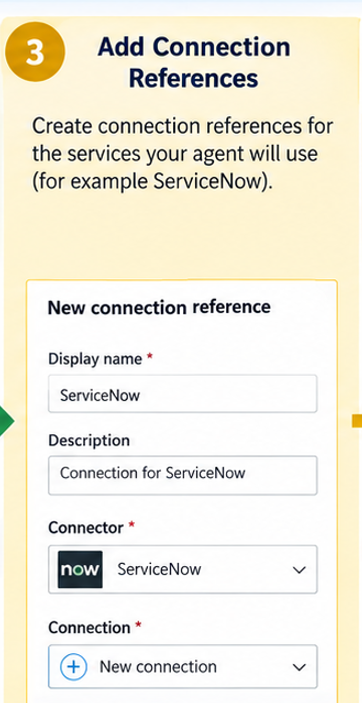
For example, our Agent may need to connect with ServiceNow.
Inside the Solution, create a new Connection Reference.
Provide the display name and description, select the required connector, and then create or select the connection.
Once the connection is created, refresh the connection list and select the newly created connection reference.
The connection reference will now become part of your Solution.
This is important because when the Solution is moved to another environment, the connection can be configured for that environment instead of rebuilding the Agent from scratch.
Add the Copilot Agent to the Solution
Now we can add the Agent itself.
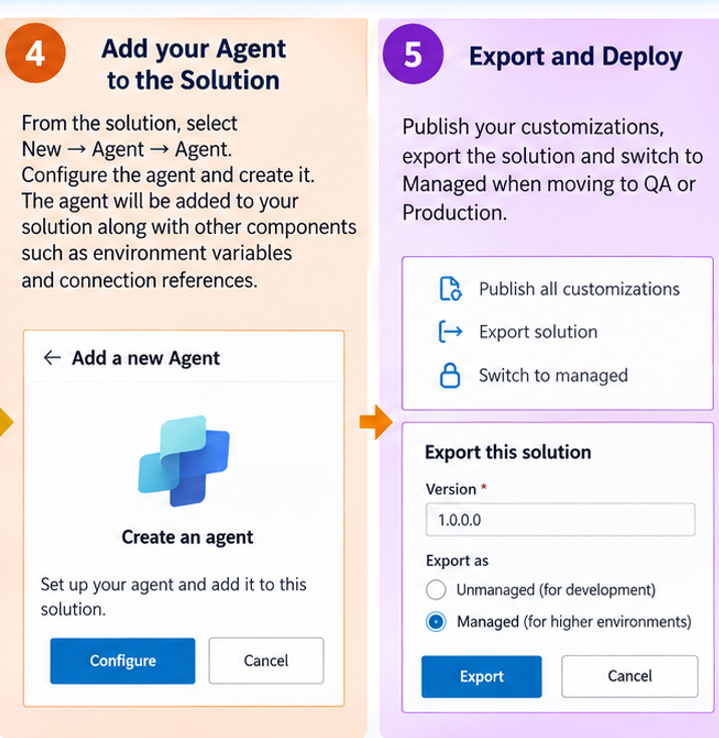
From the Solution, select:
New → Agent → Agent
Configure the Agent and create it.
The Agent is now added to the Solution together with the other components such as Environment Variables and Connection References.
At this point, your Solution contains the main components required to package and move your Agent.
Export and Move the Solution
Once your Agent and its components are ready, open the Solution and select the option to export it.
Before exporting, publish the customizations in the Solution.
Then choose the export option.
For development activities, the Solution remains Unmanaged.
When you are moving the Solution to higher environments such as QA or Production, use the appropriate managed deployment approach according to your ALM process.
This gives you a more structured way to move your Copilot Agent between environments.
Final Setup
Once the Solution is ready, keep the Agent, Environment Variables, Connection References, Agent flows and other required components inside the Solution.
This makes the Agent easier to maintain, test and move between environments.
The main idea is simple:
Build in Development → Test in QA → Deploy to Production
That is the approach I prefer when building Copilot Agents for real-world organizational use.
Leave your thoughts and experiences in the comments.
Leave a Reply