SharePoint administrators handle many repetitive tasks every day, such as creating sites, removing old sites, managing site owners, and checking permissions.
A custom agent built with Microsoft Copilot Studio can help automate some of these operations and make the process more self-service for users.
In this post, I am continuing my series on real-world Copilot Studio use cases. We will build a Self-Serve SharePoint Operations Agent and look at how Topics, Variables, and Nodes can be used to define what the agent should do.
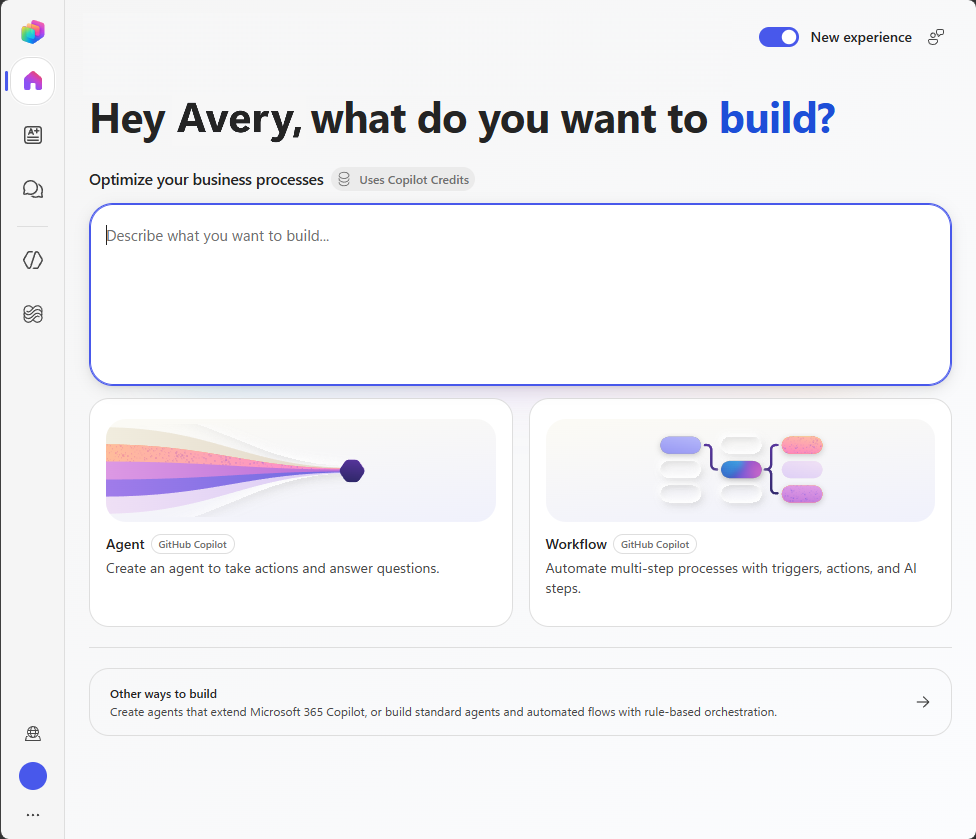
The SharePoint Operations Agent
For this example, I created a Self-Serve SharePoint Online Operations Agent.
The agent does not have any additional knowledge sources at this stage. Instead, we will focus on using Topics and actions to handle SharePoint operations.
Some examples of tasks this type of agent could handle are:
• Create a SharePoint Online site
• Delete or decommission a SharePoint site
• Add or remove site owners
• Check site ownership
• Perform other common SharePoint administration tasks
The main focus of this article is understanding Topics.
Understanding Topics in Copilot Studio
A Topic defines how an agent should handle a particular type of request.
For example, if a user asks:
“I want to delete a SharePoint site.”
The agent needs to understand what operation the user wants, collect the required information, perform the necessary checks, and then continue with the appropriate action.
In Copilot Studio, Topics are built using different Nodes. Each node represents a step in the conversation or an action that the agent needs to perform.
There are two main types of Topics:
System Topics
These are provided by Copilot Studio and handle common agent behaviour such as greetings, authentication, ending a conversation, and restarting a conversation.
System Topics cannot be deleted, although some of them can be disabled.
Custom Topics
These are created by us for specific business requirements.
For example, we can create a custom Topic called:
Decommission SharePoint Site
This Topic can contain all the steps required to verify the user, validate the site, confirm the request, and start the deletion process.
Generative AI Orchestration
When generative AI orchestration is enabled, the agent can decide which Topic or action is relevant based on the user’s request.
The user does not necessarily need to use the exact wording defined for a Topic.
For example, the user could say:
“Remove this SharePoint site.”
or
“I want to decommission a site.”
The agent can understand that both requests are related to the same operation.
Because of this, I prefer to keep the Topic description clear and include examples of the type of requests the Topic should handle.
Creating the Decommission Site Topic
Let’s take the SharePoint site deletion scenario.
The overall process is:
- Create a custom Topic for decommissioning a SharePoint site.
- Ask the user for the SharePoint site URL.
- Verify that the current user is an owner of the site.
- If the user is an owner, ask for confirmation before continuing.
- Add the site to the deletion process.
- Provide information about the restore process and relevant company policies.
Start by going to Topics in Copilot Studio and create a new Topic from blank.
Topic Name and Description
The first step is to give the Topic a meaningful name and description.
For example:
Topic Name: Decommission SharePoint Site
The description should clearly explain what the Topic is responsible for.
With generative orchestration enabled, this description becomes especially important because the agent uses it to understand when the Topic should be used.
If phrase-based triggers are not visible, I prefer to describe the expected user requests in the Topic description rather than switching the agent back to the classic experience.
Keep these descriptions simple and focused on the actual purpose of the Topic.
Variables
Variables are another important part of Topics.
They allow us to store information and pass values between different parts of the agent.
For example, in our SharePoint scenario, we may need variables for:
• SharePoint Site URL
• Site ID
• Owner Group ID
• Current User
• Validation result
• Deletion status
Copilot Studio supports different types of variables, including:
Local variables
Used only within the current Topic.
Global variables
Can be used across different Topics.
System variables
Automatically available in the agent.
Environment variables
Created in Power Platform and available as read-only values in Copilot Studio.
The Variables panel allows us to define which values a Topic can receive and which values it can return.
This becomes useful when one Topic needs to pass information to another Topic.

Nodes
Nodes are the individual steps inside a Topic.
Depending on what we want the agent to do, we can use different types of nodes to ask questions, send messages, call actions, work with variables, or perform other operations.
For this SharePoint example, we need to communicate with Microsoft Graph to validate the site and its owners.
For that, we can use:
Advanced → Send HTTP Request
This allows the Topic to make requests to Microsoft Graph APIs and use the returned information in the conversation.
Checking Whether the User Owns the Site
Before allowing a user to delete a SharePoint site, we need to verify that they are authorised to perform the operation.
The basic flow is:
User → Site URL → Site ID → Owners Group → Group Members → User Validation
Here is how the process works.
1. Get the Site URL
When the user asks to delete a site, the agent asks for the SharePoint Online site URL if it has not already been provided.
2. Find the Site ID
The agent sends an HTTP request to Microsoft Graph using the site URL.
The response provides the required Site ID, which we can use for the next API calls.
3. Find the Owners Group
Using the Site ID, another Microsoft Graph request can be used to identify the site’s Owners group.
We then get the Owners Group ID.
4. Get the Owners
The next request retrieves the members of the site’s Owners group.
The agent can then check whether the current user’s UPN exists in that group.
5. Continue Based on the Result
If the user is an owner, the agent can continue with the next step.
If the user is not an owner, the agent can stop the process and inform the user that they do not have the required permissions.
The site URL can also be stored in a Global variable so that it can be used by the next part of the workflow.
What We Have Built So Far
At this stage, our agent can understand a request to decommission a SharePoint site, collect the site URL, communicate with Microsoft Graph, identify the site and Owners group, and verify whether the current user is an owner.
This is where Copilot Studio becomes interesting for SharePoint administration.
Instead of building a completely manual process for every request, we can combine Topics + Variables + HTTP Requests + Microsoft Graph to create a self-service experience.